How to find screenshots by keyword. Natural-language search uses the same context as your titles and content.
Search uses the same AI-understood context as your titles and screenshot content, so you can search by concept or what you remember seeing, not only exact words.
Type in the search box: keywords, titles, or descriptions of what’s in the screenshot. Results match meaning and context, not just literal text (e.g. “login error” can match related screenshots).
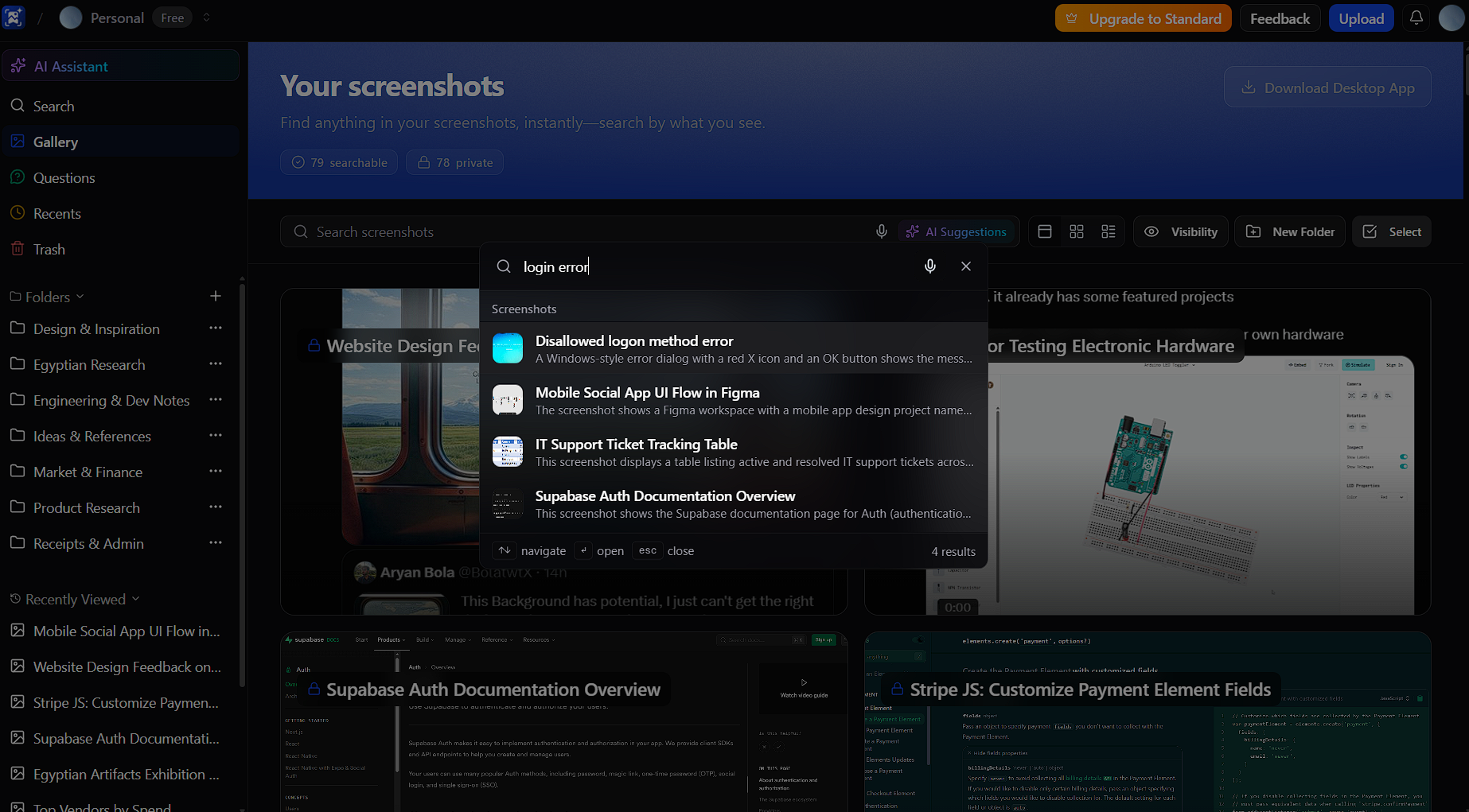
Use more specific phrases when you need narrower results (e.g. “login error” instead of “error”). Partial words work: “bug” can match “bug”, “bugs”, “debugging”.
Put what you learned into practice.
