Your screenshot library gets a lot smarter when you talk to it. The AI assistant understands plain language and can:
- run semantic search across your library (including date filters),
- analyze screenshot visuals when needed,
- find exact cropped snippets for "show me where" style requests,
- update metadata and folder placement,
- and export selected results as a ZIP.
What you can do
- Semantic search — Find screenshots by meaning, not just exact words (e.g. "login failures this week" or "pricing table with annual plan"). Date ranges like "today", "last week", or explicit ranges are supported.
- Visual analysis — Ask the assistant to inspect a specific screenshot and explain what is shown, summarize key points, or call out notable details.
- Find exact screenshot snippets — For requests like "show me where the error is" or "focus on the top-right badge", the assistant can return a cropped area instead of only a full preview.
- Update metadata — Change titles, summaries, tags, or categories for one screenshot or many at once (e.g. “Add the tag bug to all screenshots with error in the title”).
- Manage folders — Create and update folders, then move screenshots into or out of folders in chat.
- Export — Ask to export or download a set of screenshots; the assistant can prepare a ZIP for you.
When visual tools are used, the screenshot is sent temporarily for AI processing to produce the analysis or crop result.
Steps
1. Open chat
Open chat from the floating assistant button. On larger screens, chat opens in a centered dialog-style workspace (not a sidebar). You can optionally select screenshots first; the assistant can use that context.
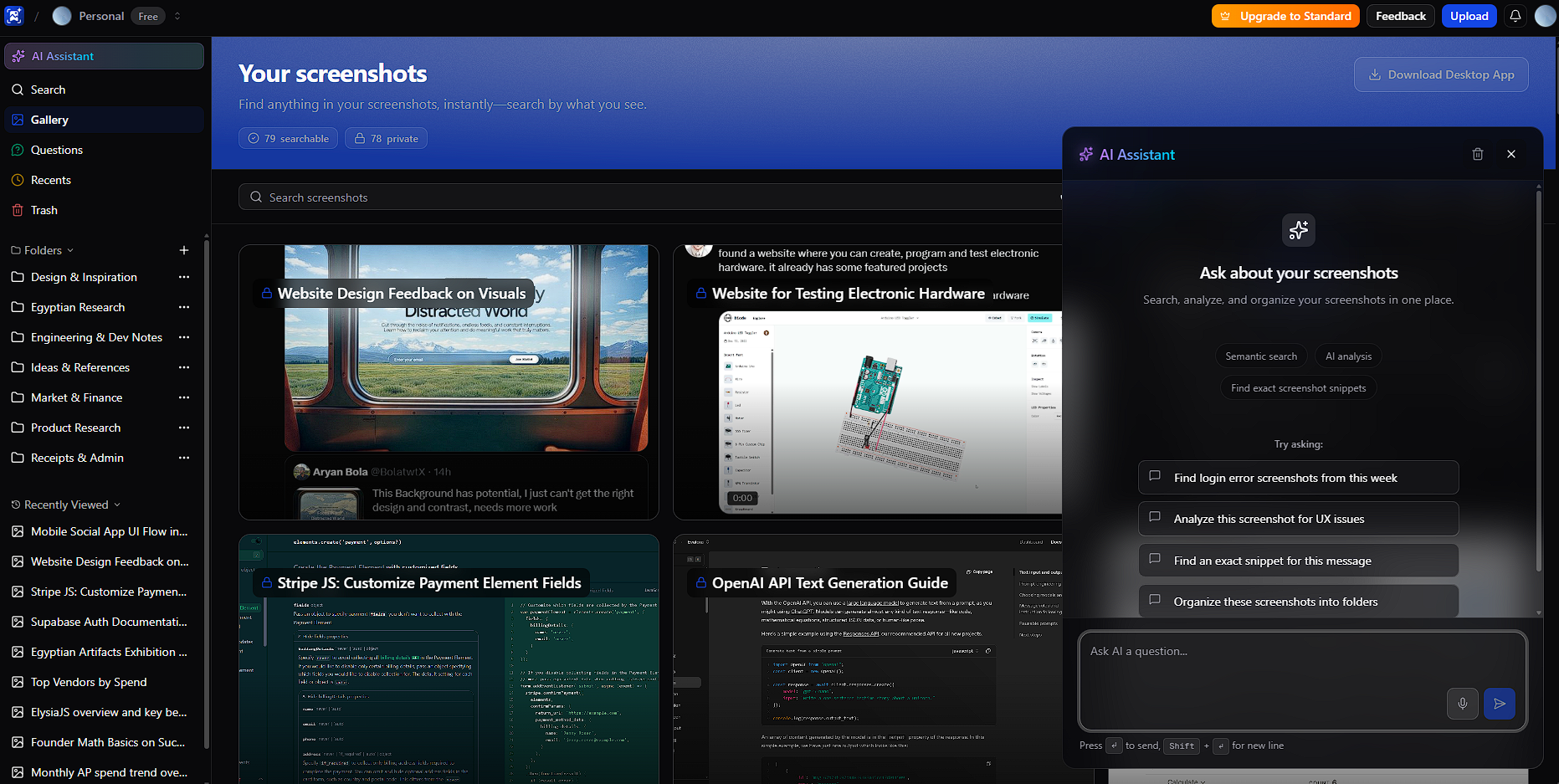
2. Search or ask questions
Ask in plain language, for example:
- "Find login issue screenshots from this week."
- "What changed in the billing settings UI?"
- "Show me where the 401 error appears in this screenshot."
3. Request changes or actions
Ask for updates ("Add the tag bug to all login error screenshots"), folder actions ("Move these to Archive"), or exports ("Export screenshots from this month as ZIP"). The assistant can apply these actions across one or many screenshots.
4. Use the same thread for follow-ups
Keep related questions in the same conversation so the assistant can use prior context—e.g. “Now add the tag fixed to those” or “Move the first three into the Done folder.”
Tips
- Use intent words for crops — Phrases like "show me", "where is", and "focus on" help the assistant return precise snippet crops.
- Include time context — "today", "last week", or explicit date ranges improve semantic search relevance.
- Reference one screenshot clearly for analysis — If needed, ask for a screenshot by title or open it first, then request analysis.
- Use chat for bulk work — Metadata updates, folder moves, and exports are faster in one prompt than manual edits.
- Keep one thread per task — Follow-ups work best when the assistant can reuse previous results.
