Ask a one-off question about any image and get an AI answer instantly. The image stays out of your gallery unless you promote it. Perfect for errors, docs, or quick summaries.
Screenshot Questions let you ask a one-off question about any image and get an AI answer right away. The image is not added to your gallery unless you choose to promote it—so you can use Questions for quick lookups (e.g. “What does this error mean?” or “Summarize this page”) without cluttering your library. Each question uses monthly credits (same pool as gallery uploads); allowance depends on your plan (Basic, Standard, or Pro).
In the Evalora desktop app, make a selection. On the screenshot selection toolbar, click the question mark chat button or press Ctrl+Q to open the question dialog. Enter your question (e.g. “What does this error mean?”, “Summarize this doc”, “List the steps shown”) and submit. The question is sent to the AI and appears under Questions on the web.
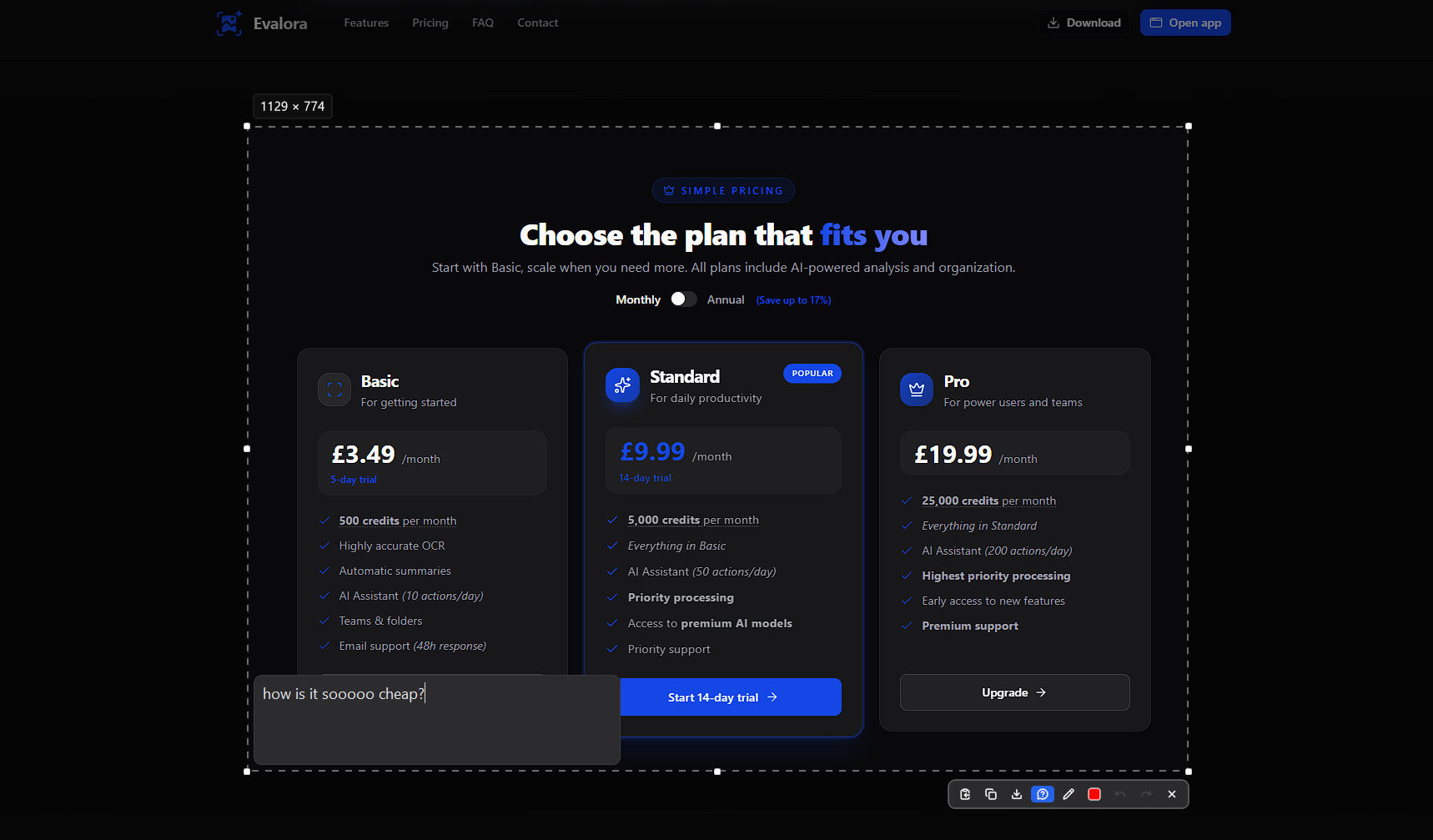
If you haven’t linked the desktop app yet, see Connect Desktop App.
In the sidebar, click Questions (or go to /questions). You’ll see your recent questions with prompt, AI response, and status (Pending, Done, or Failed). Each row shows the question you asked and the answer; you can expand to read the full response.
Use the search bar on the Questions page to find questions by the text of your prompt or the AI’s response. Helpful when you have many questions and want to revisit a specific one.
When an answer’s image is worth keeping, use Add to gallery on that question. The image is uploaded to your library, receives full AI analysis (title, summary, tags), and counts toward your monthly screenshot limit. The question remains in your Questions list and can still be deleted separately.
Put what you learned into practice.
