Link the desktop app to your account so screenshots sync to the web library. Pairing uses a one-time code and stores credentials securely on the device.
Device pairing connects the Evalora desktop app to your account. After pairing, the app can upload screenshots to your web library and they receive the same AI tagging. Pairing is done once per device via a code in the browser.
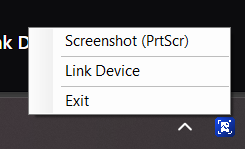
Right-click the Evalora icon in the system tray (Windows notification area) and choose Link Device. The pairing flow starts.
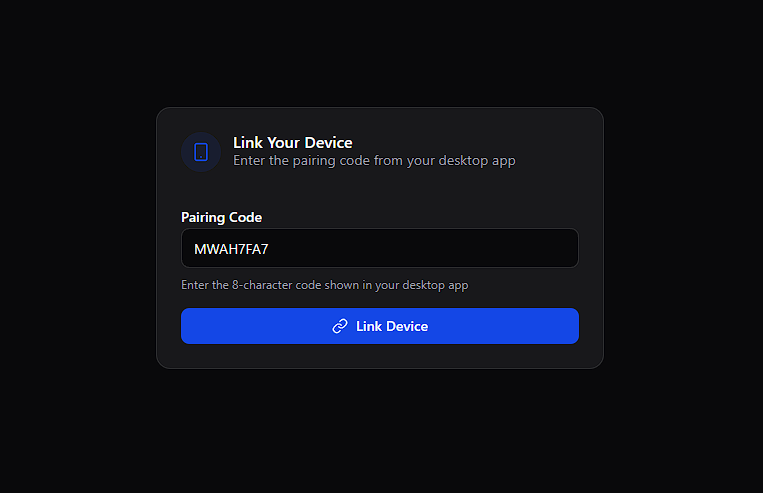
The app opens your browser to the device linking page and shows a pairing code. Confirm the code and click Link Device there to authorize the connection.
The desktop app shows a notification for success or failure. If something fails, check the message and try again or re-pair.
After pairing, take a test screenshot in the desktop app. It should appear in your web library shortly with AI tags applied.
Put what you learned into practice.
